Settings
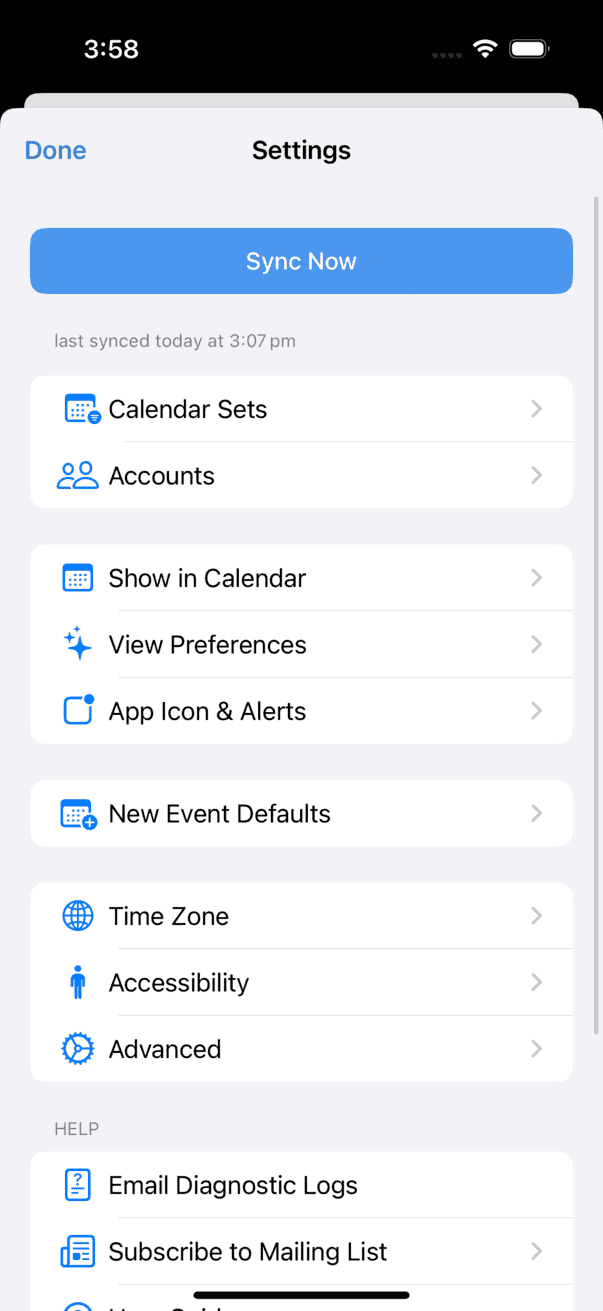
BusyCal's Settings screen lets you configure the app's appearance and behavior.
To open it, tap the gear icon  in the upper-left corner.
Sync Now
Tap Sync Now to force an immediate sync of all calendars. The screen shows the date and time of the most recent sync.
Calendar Sets
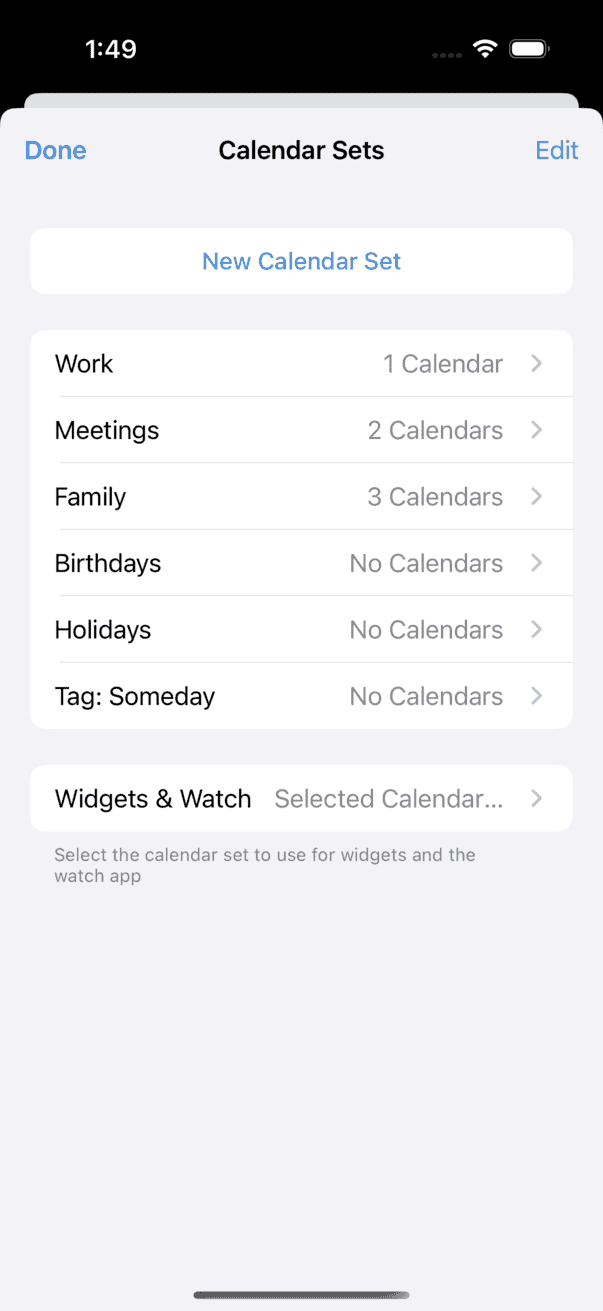
Tap Calendar Sets to customize the group of calendars and their events you'd like to see at a given time. Learn more.
Calendar Types
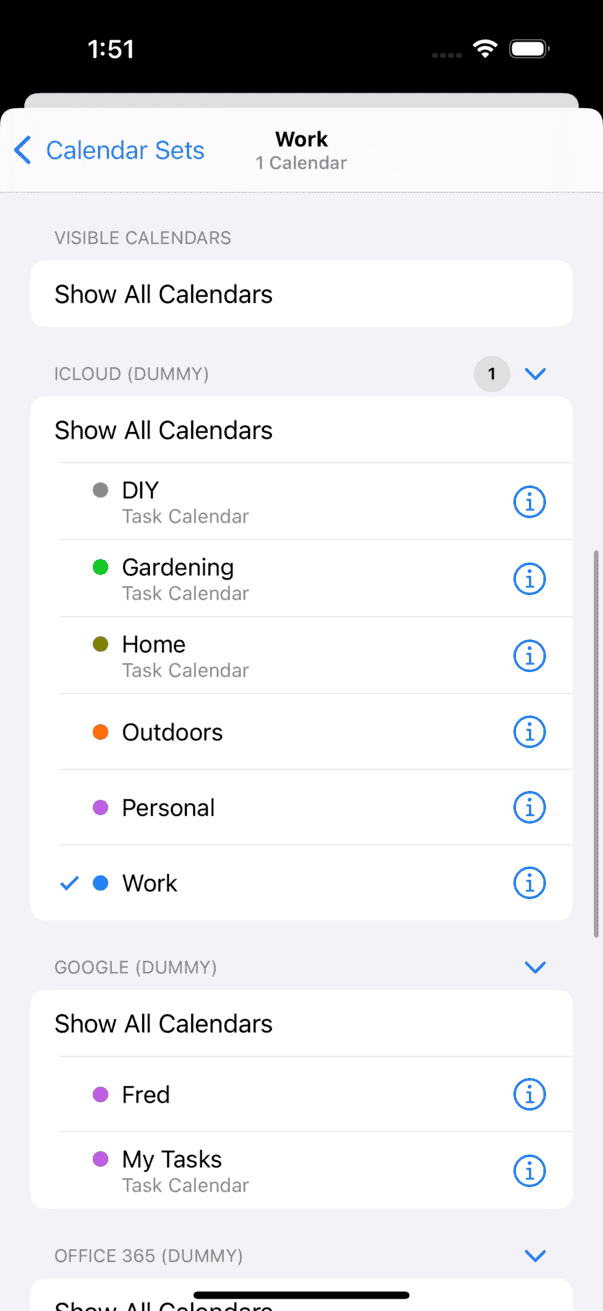
Calendars hosted on iCloud (and most CalDAV servers) are type-specific—each calendar contains either events or tasks, but not both. BusyCal indicates a task calendar by displaying "(Task Calendar)" next to its name. Event calendars sync with the Calendar app, and task calendars sync with the Reminders app.
Calendar Details
To change a calendar's details, tap the "i" icon to the right of its name in the calendar list.
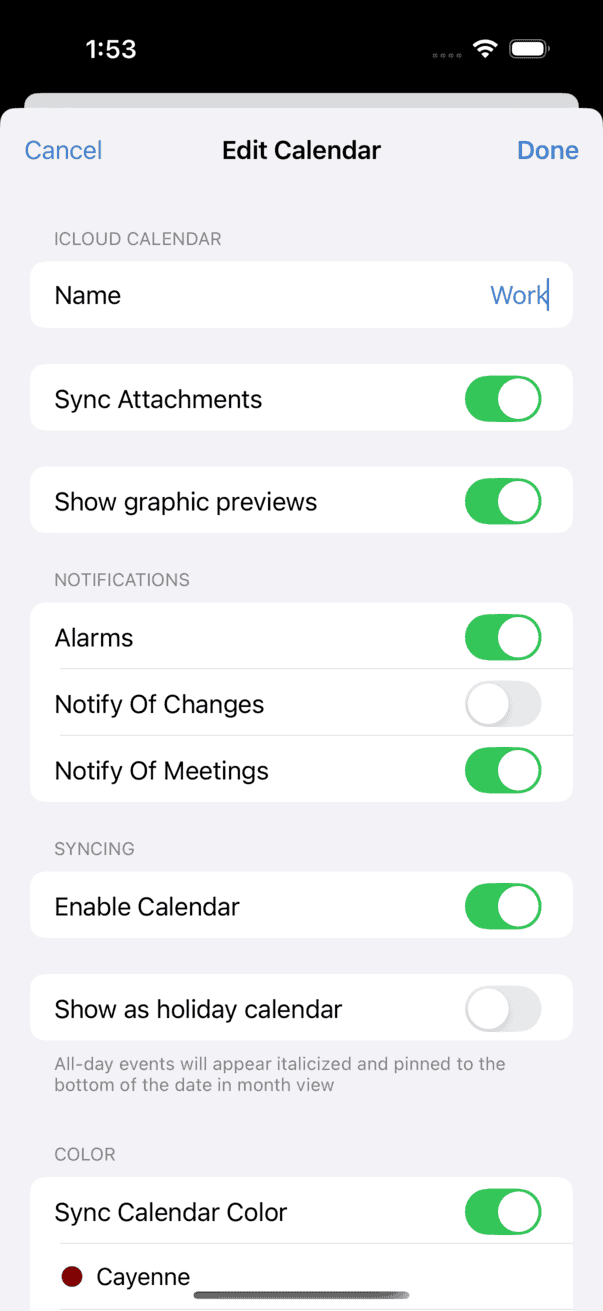
- Name — Type a new name for the calendar.
- Color — Tap a color to apply that color to the calendar and its events.
- Alarms — Turn alarms on or off for this calendar.
- Notify of Changes — When enabled, changes made by other people appear in your Inbox.
- Enable Calendar — Enable or disable syncing for this calendar.
You cannot create a new calendar in BusyCal for iOS. Use the Calendar app, BusyCal for Mac, or another calendar client to create calendars.
Accounts
To add or modify calendar accounts (iCloud, Google, Office 365, Exchange, Fastmail, CalDAV, Todoist, etc.), tap Accounts.
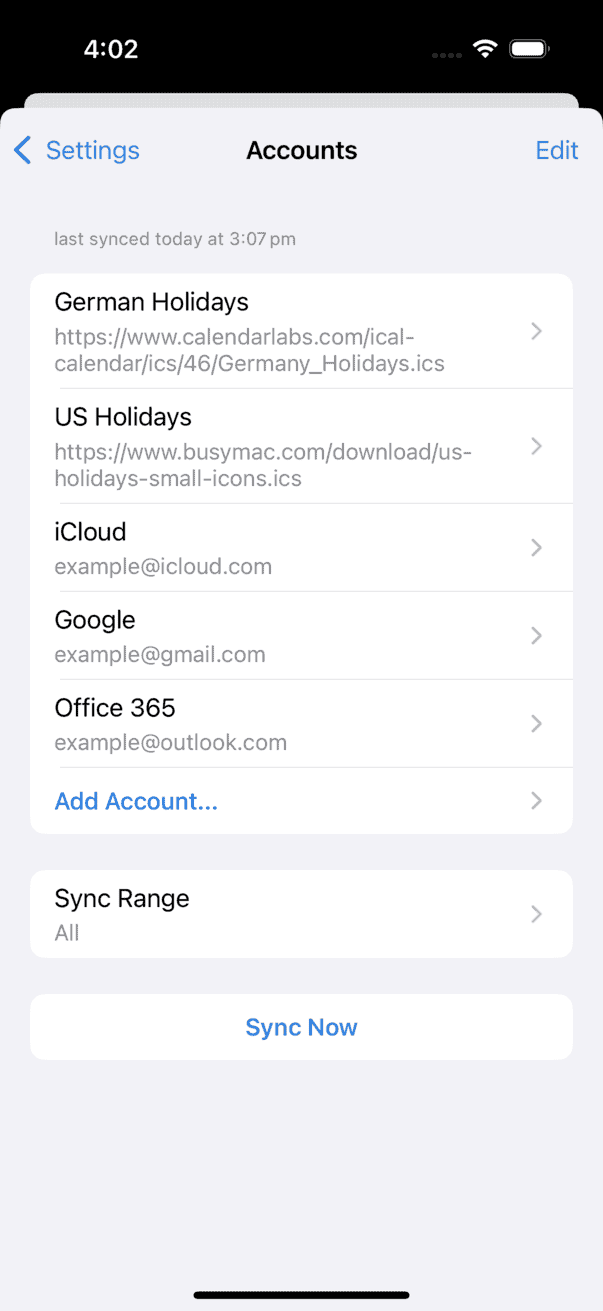
To add an account, tap Add Account, select the account type, fill in your credentials, and tap Add. To delete an account, tap the account name followed by Delete Account.
For information on adding and configuring various account types:
- iCloud — Using BusyCal with iCloud
- Google — Using BusyCal with Google Calendar
- Outlook / Office 365 — Using BusyCal with Outlook / Office 365
- Exchange (EWS) — Using BusyCal with Exchange
- CalDAV — Using BusyCal with a CalDAV Server
- Todoist — Using BusyCal with Todoist
Show in Calendar
Controls which types of information are visible in your calendar.
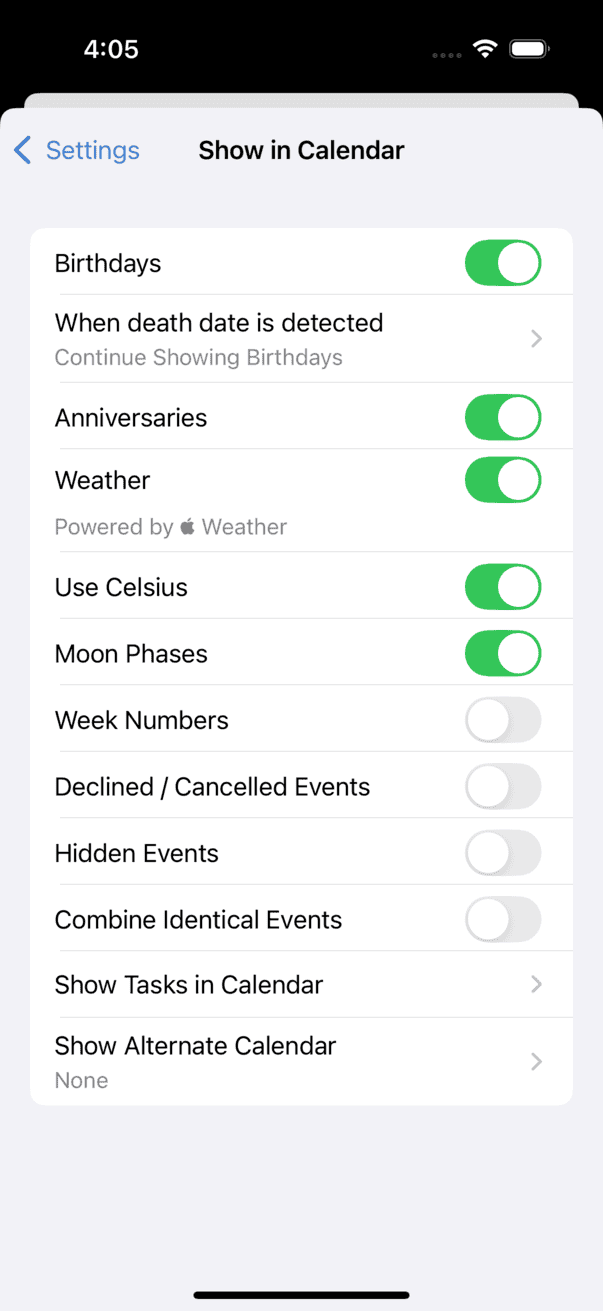
- Show Birthdays Calendar — Shows birthdays from the iOS Contacts app. See Birthdays and Anniversaries.
- When death date is detected — Choose whether to continue showing birthdays (without incrementing age), stop showing birthdays from the year of death, or show death anniversaries.
- Show Anniversaries Calendar — Shows anniversaries from the iOS Contacts app. See Birthdays and Anniversaries.
- Show Weather — Displays weather forecasts at your location for the next 7 days. Requires Location Services permission.
- Use Celsius — Toggle between Celsius and Fahrenheit for weather display (appears when Show Weather is enabled).
- Show Moons — Displays moon phase graphics.
- Show Declined Events — Displays events you were invited to but declined.
- Show Hidden Events — Shows events you have manually hidden using the context menu (long-tap on event).
- Combine Identical Events — Merges duplicate events that appear on two or more calendars.
- Show Week Numbers — Displays week numbers in Day, Week, and Month views.
- Show Alternate Calendar — Show an alternate calendar: Chinese, Hebrew, Islamic, Persian, Day of Year, or World Season Calendar.
- Show Tasks in Calendar — Nested settings for task display in the calendar:
- Dated/Timed Tasks — Show dated or timed tasks in the calendar on their due dates.
- Carry Forward Uncompleted — Carry forward past-due tasks and display them on the current date.
- Completed Tasks — Show completed tasks in the calendar.
- Completed Undated Tasks — Show completed undated tasks in the calendar.
- Completed Tasks in Calendar — Choose whether completed tasks appear on their due date or their completed date. When showing by completion date, Day and Week views show these in the all-day section.
- Task Duration in Day & Week — Default visual duration for tasks in Day and Week views: 15, 30, 45 minutes, or 1 hour.
View Preferences
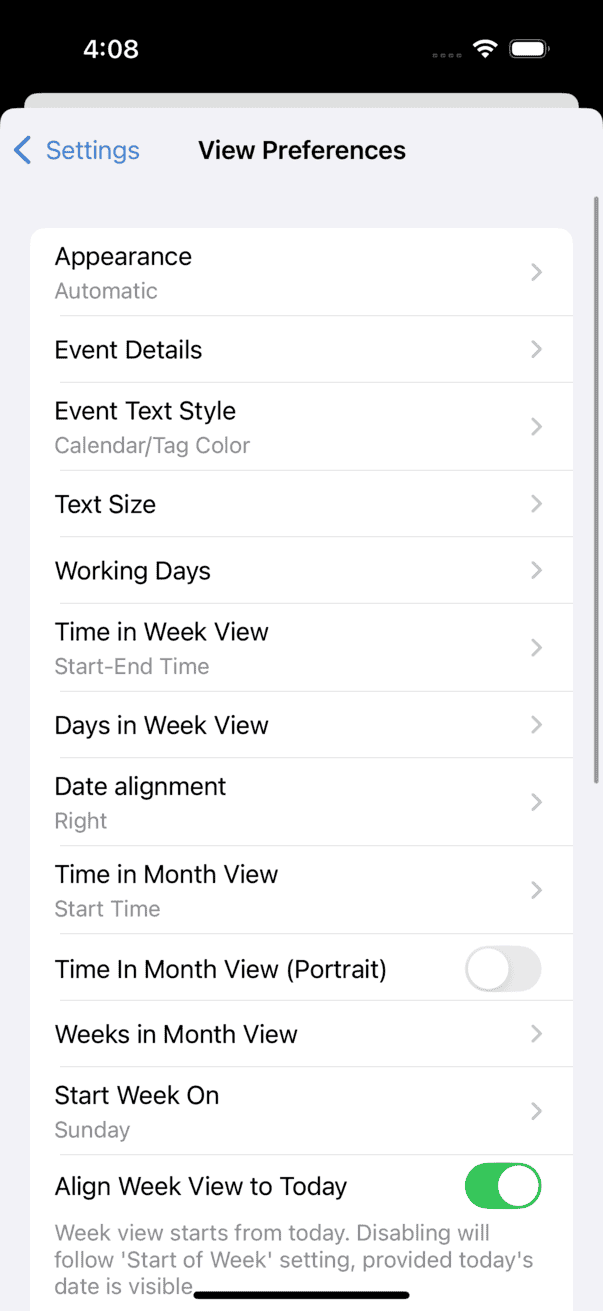
Controls how calendars and events appear on your screen.
Appearance
- Appearance — Choose Automatic (follows system), Always Dark, or Always Light.
- Event Text Style — Choose Plain (default text color), Calendar/Tag Color (text colored by calendar or tag), or Calendar Color Only (text colored by calendar, ignoring tags).
- Increase text contrast — When enabled, boosts saturation of colored event text for better readability in Light mode. When disabled, event text colors match their assigned calendar or tag colors more closely. Appears when Event Text Style is not Plain.
- Text Size — Set text size independently for List View, Day/Week View, Month View, and Tasks View.
- Shade Weekends — Shades weekends gray on your calendar.
- Dim Past Events — Dims events that have already occurred.
- Dim Pending Invites — Displays meeting invites you haven't responded to in gray.
Calendar Configuration
- Working Days — Configure the start and end times of your day (including Sunrise/Sunset options) and select your work week days.
- Start Week On — The first day displayed in the leftmost column of the Week/Month view.
- Date alignment — Align date numbers to the right or left in calendar cells.
Event Details
Choose which fields appear in the Event Details view for events and tasks.
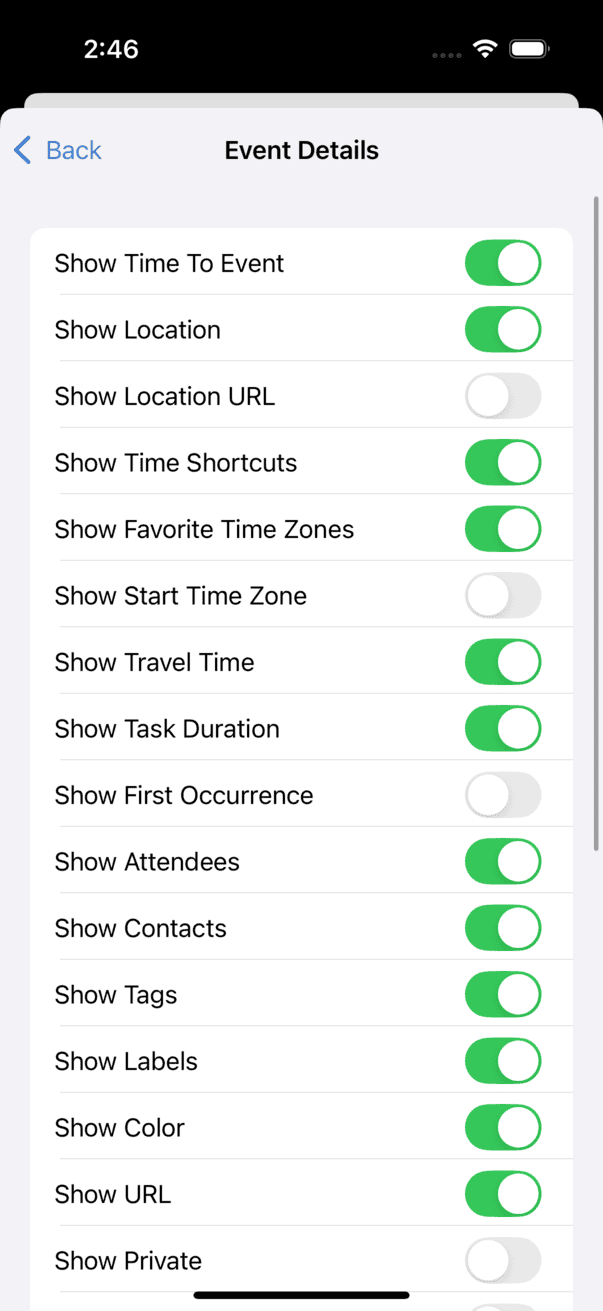
- Show Time To Event — Displays a countdown to the event start time.
- Show Location — Text field for entering location information.
- Show Location URL — URL field for entering location URLs.
- Show Time Shortcuts — Shows time shortcut buttons when creating or editing events.
- Show Favorite Time Zones — Shows your favorite time zones in the event editor.
- Show Start Time Zone — Time zone menu for the event start time. See Time Zones.
- Show End Time Zone — Time zone menu for the event end time (appears when Start Time Zone is enabled).
- Show Travel Time — Menu for viewing or specifying travel time. See Maps & Travel Time.
- Show Task Duration — Displays a duration field for tasks.
- Show First Occurrence — Displays the first occurrence date and sequence number of a repeating event.
- Show Attendees — Field for adding attendees. See Meetings and Invitations.
- Show Contacts — Field for linking to contacts.
- Show Tags — Field for entering tags. See Tags.
- Show Labels — Displays event labels.
- Show Color — Displays an event color picker.
- Show URL — URL field for inserting links.
- Show Private — Toggle to mark the event as Private. When sharing a calendar through Exchange, Google, or some CalDAV servers, private events appear to others as "Private Event." Only timed events can be made private. Not supported by iCloud.
- Show Busy — Toggle to mark the event as busy or free.
- Show Created Time — The date and time the event was created.
- Show Edited Time — The date and time the event was last modified.
- Show Map — For events with structured locations, shows a map at the bottom of the details view.
- Video Calls — Toggle detection and display for individual video call services (Zoom, Teams, Google Meet, etc.).
Week View
- Time in Week View — Display options for event timing: None, Duration (e.g. "1h"), or Start-End Time.
- Days in Week View — Number of days shown: 2–7 on iPhone, 2–14 on iPad. Separate settings for Portrait and Landscape.
- Align Week View to Today — When enabled, Week view starts from today. When disabled, it follows the Start Week On setting.
- Notes in Day & Week View — Show event notes in Day and Week views.
Month View
- Time alignment in Month View — Align event times to the right or left.
- Time in Month View — Show None, Start Time, or Start-End Time for events. On iPhone, time is shown in landscape only by default.
- Time In Month View (Portrait) — Also show times in portrait mode (iPhone only, appears when Time in Month View is not None).
- Weeks in Month View — Number of weeks shown: 2–8. Separate settings for Portrait and Landscape.
- Align Month View to Current Week — When enabled, Month view starts from the current week. When disabled, it starts from the first day of the month.
- Notes in Month View — Show event notes in Month view.
List View
- Empty Days in List View — Show days with no events in List view.
- Notes in List View — Show event notes beneath event titles in List view.
Task Display
- Dim Completed Tasks — Dims completed tasks in the calendar and task list.
- Friendly Dates in Task List — Shows relative dates (e.g. "Tomorrow") for dated tasks. Turn off to show absolute dates.
Multi-Day Events
- Combined Multi-Day Events — When enabled, multi-day events are combined into a single visual block in Day and Week views.
- Multi-Day Event Duration — Maximum duration (30 minutes to 22 hours) for the combined display. Appears when Combined Multi-Day Events is enabled.
App Icon & Alerts
Controls BusyCal's app icon badge and alarm behavior.
- Meeting Invitations — Show meeting invitations in the Notification Center.
- Badge Icon — Choose what to display on BusyCal's app icon badge: None, Today's Remaining Items, Today's Tasks, Today's Tasks + Overdue, All Overdue Tasks, Inbox Notifications, Current Date, Current Week, or Current Day of Year.
- Event Alarms — Enable or disable event alarms. When enabled, tap to choose an alarm sound or Vibrate Only.
- Task Alarms — Enable or disable task alarms. When enabled, tap to choose an alarm sound or Vibrate Only.
- Journal Alarms — Enable or disable journal alarms. When enabled, tap to choose an alarm sound or Vibrate Only.
New Event Defaults
Default settings for new events, tasks, and journals.
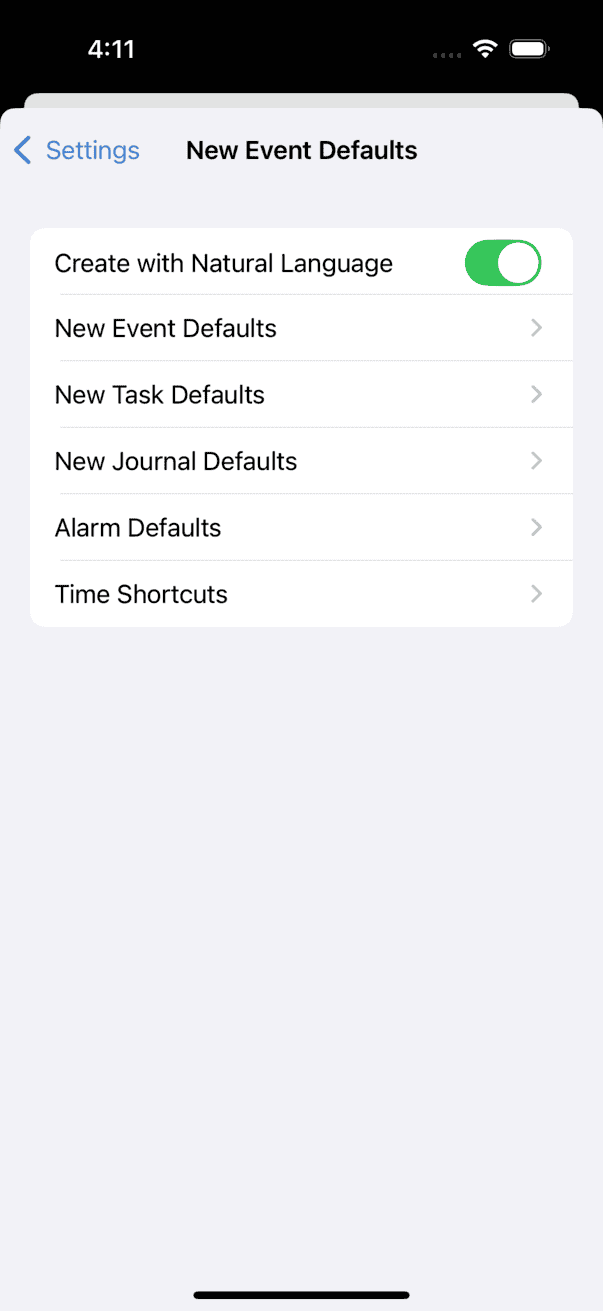
- Create with Natural Language — Replaces the Title field with a freeform text field where you can type event details in natural language (e.g. "Lunch with Joe next Tuesday" or "Dentist at 2:00 Monday alarm 15m"). BusyCal interprets your entry and creates the event.
When Create with Natural Language is enabled, the Event Details view shows an abbreviated set of options.
-
New Event Defaults:
- Default Calendar — The default calendar for new events.
- All Day — Whether new events are created as all-day events by default.
- Default Start Time — The default start time for new timed events.
- Default Duration (minutes) — The default duration for new timed events.
-
New Task Defaults:
- Default Calendar — The default calendar for new tasks.
- Default Priority — None, Low, Medium, or High.
- Default Due Date — Undated, Same Day, Next Day, In 2–6 Days, or In 1 Week.
- Default Due Time — Whether new dated tasks have a default due time (appears when a due date is set).
-
New Journal Defaults:
- Default Calendar — The default calendar for new journal entries.
-
Alarm Defaults — Set default alarms (up to 3 per type) for each event type. Each alarm can be individually enabled or disabled:
- For Timed Events — Default alarm timing for timed events.
- For All Day Events — Default alarm timing for all-day events.
- For Timed Tasks — Default alarm timing for timed tasks.
- For Dated Tasks — Default alarm timing for dated tasks.
- For Birthdays & Anniversaries — Default alarm timing for birthday and anniversary events.
- Apply when accepting invites — Automatically add default alarms when you accept meeting invitations.
-
Time Shortcuts — Configure the preset times shown as suggestions when creating a new timed event or task.
-
Use Floating Time for New Events — New events use floating time zones (the event stays at the same local time regardless of which time zone you're in).
-
Use Floating Time for New Tasks — Same as above, but for new tasks.
Time Zone
Time zone settings for your calendar.
- Time Zone Override — Force BusyCal to use a specific time zone instead of the device's current time zone. See Time Zones.
- Show Second Time Zone — Displays a second time zone ruler alongside the primary one in Day and Week views.
- Show Third Time Zone — Displays a third time zone ruler (appears when Second Time Zone is enabled).
- Favorite Time Zones — Save time zones with custom names for quick access in time zone pickers and the event editor. Tap a saved time zone to rename it.
Accessibility
Settings to customize interaction and display for ease of use.
General
- Always Highlight Today — Always show a highlight ring around today's date.
- Long-Press Menu Options — Choose which item types (New Event, New Task, New Journal) appear when you long-press the Add button or a date/time in the calendar. If only one option is selected, a long-press automatically creates that item type.
Day / Week View
- Context Menus in Day / Week View — Enable or disable context menus (long-press on events) in Day and Week views.
- Show Join Button in Calendar — Show or hide the meeting join button on events in Day and Week views.
Month View
- Month Name on Every Day — Display the month name on every day cell, not just the first day of each month.
- Show Month Names when Scrolling — Display a floating month name indicator while scrolling through months.
- Separators in Month View — Show or hide grid separators between days in Month view.
Security
Biometric lock settings (appears only on devices with Face ID or Touch ID).
- Require Face ID / Touch ID — Choose how quickly authentication is required after leaving BusyCal: Immediately, After 15 seconds, After 30 seconds, After 1 minute, After 3 minutes, After 5 minutes, or After 10 minutes.
- Protected Calendar Sets — Choose which calendar sets require biometric authentication to view. You can protect individual calendar sets or All at once. Events from protected sets are hidden when viewing "All Calendars" until you authenticate.
- Allow widgets access — When enabled, widgets and the Watch app can display events from protected calendar sets without requiring authentication.
Advanced
Additional settings for customizing BusyCal's behavior.
- Manage Tag History — View, edit, and delete your tag history. You can create new colored tags, rename existing ones, and sync your tag list across devices.
- Open Locations in — Choose which map app opens when you tap an event location: Apple Maps, Google Maps, Waze, City Mapper, or TomTom Go.
- Open Links in — Choose which browser opens when you tap a URL: Safari, Chrome, Firefox, Brave, Dolphin, Opera, or Edge.
- Log Level for Support — Adjusts the detail level of diagnostic logs. Change only if requested by BusyMac support.
- Detect HTML text in Notes — When enabled, BusyCal converts HTML-formatted text in event notes to plain text for display.
- Confirm Event Deletion — When enabled, prompts for confirmation before deleting events from the calendar views. Deleting from within Event Details always prompts.
- Sync Accounts — Sync your account configuration across devices via iCloud.
- Sync Calendar Sets — Sync your calendar set configuration across devices via iCloud.
Help
- Email Diagnostic Logs — Send diagnostic logs to BusyMac support (with or without logs, or share logs via the share sheet).
- Subscribe to Mailing List — Subscribe to the BusyMac mailing list for news and updates.
- User Guide — Open this online help.
- Write a Review — Open the App Store to write a review (not shown for Setapp users).
- About — Display the app's version, URL, and copyright information.
settings ios iphone ipad busycal preferences configuration app settings application preferences calendar configuration app configuration view settings ios settings busycal settings iphone settings ipad settings busycal ios preferences busycal ios configuration event settings ios calendar settings busycal setup ios calendar setup busycal ios setup account setup busycal ios accounts busycal ios time zone busycal ios accessibility busycal ios security busycal ios dark mode appearance theme busycal ios face id touch id busycal ios favorite time zones busycal ios multi-day events