Using BusyCal with Office 365 (Microsoft Graph)
In our continuous effort to enhance BusyCal's connectivity and feature set, we have transitioned our syncing mechanism for Office 365 accounts to utilize Microsoft Graph API, Microsoft's latest sync offering.
Why the Change? Microsoft Graph represents the next generation in Microsoft's cloud services, offering broader capabilities and better security than its predecessor, Exchange Web Services (EWS). Microsoft has announced a phased Exchange Online EWS retirement: initial blocking starts on October 1, 2026, with full shutdown on April 1, 2027. By adopting Microsoft Graph, BusyCal ensures continued compatibility with Office 365 and Outlook.
What's Different? While the core functionality of syncing calendars, events and tasks remains the same, Microsoft Graph enables enhanced performance and compatibility with Outlook and its newest offerings, such as receiving updates from Microsoft Bookings and creating one-click conference calls with Microsoft Teams, features that are otherwise not available via EWS.
Personal Outlook
When it comes to personal Outlook accounts, including those on outlook.com, hotmail.com, and similar non-enterprise services, the integration process is slightly distinct. Microsoft has phased out basic authentication methods (such as passwords) for these accounts in favor of more secure authentication protocols. This change aims to enhance security for personal users by reducing the reliance on passwords, which are vulnerable to various security threats. As a result, BusyCal's connection to personal Outlook accounts leverages modern authentication techniques, ensuring a secure and streamlined experience for managing your calendars and tasks. This adjustment ensures that personal Outlook accounts benefit from the same robust Microsoft Graph connectivity as enterprise accounts.
Syncing Calendars and Tasks
To sync BusyCal with your Office 365 account via Microsoft Graph, follow these steps:
- Open BusyCal > Settings > Accounts.
- Click the + (plus) icon to add a new account.
- Select Office 365 (Microsoft Graph) from the Server Type menu, enter your email address, then click OK.
- Follow any additional prompts to complete the setup. Once configured, BusyCal will begin syncing with your Office 365 account via Microsoft Graph.
In case you're prompted to provide Admin Consent during the authentication process, you would need to reach out to your Office 365 admin and ask them to grant BusyCal permission to connect to your account. We have detailed instructions on how to grant BusyCal access using the Azure Portal.
Resources
Conference Rooms / Printers and other resources on an Microsoft Graph / Exchange server can be added to events in BusyCal as an attendee. Simply typing in the name of the resource will auto-complete the resource name for you. You can then click on the "Available Meeting Times" option to open the Availability Viewer.
Microsoft Teams Conference Calls
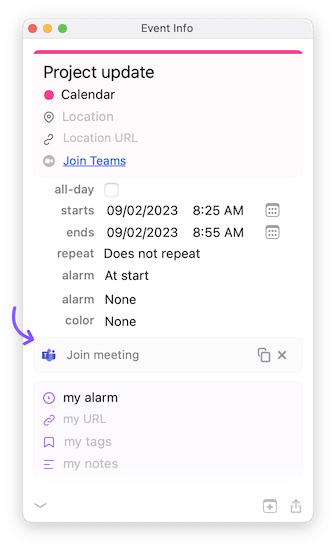
With version 2023.1.3 and above, you can add one-click Teams meetings to events / invitations. Simply open BusyCal Settings > Info Panel and make sure you have checked the Microsoft Teams option to show. You should now see a Add Meeting button appear in the Info Panel when editing events. Clicking on this button will automatically create a conference call (using Teams) and add it to the event.
Please be aware that this functionality is contingent on specific account settings. It is available for Enterprise Office 365 accounts that have not restricted Teams access via the Office 365 Portal. Additionally, the visibility of this feature depends on the absence of administrative restrictions on your calendar. For those using Personal Outlook accounts, look for the Add Skype call option instead, allowing for easy incorporation of Skype calls into your events.
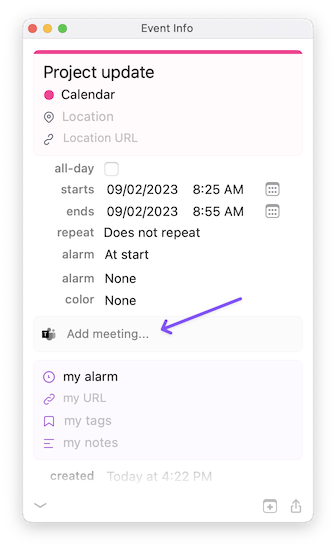
After clicking on the Add Meeting button, a meeting is automatically added for you during the next time the app performs syncs.
Shared Calendars
Some secondary calendars created a long time ago on Exchange (and still visible via EWS) will not be available via Microsoft Graph. Overall however, you should see the same calendars in BusyCal that you do in Outlook, for instance. If there are some shared calendars not syncing through, you may need to separately configure these in BusyCal:
- Open BusyCal Settings, click on the Accounts tab
- Select the account in the left panel, then on the Sharing tab
- Click + and then enter the email address of the person that has shared their calendars with you
- Close Settings and click View > Refresh to sync
Shared calendars should now appear in the left panel. In some situations, you may see duplicate calendars in the left panel for the same user that has shared their calendars with you. This is because the server is syncing these normally as well as separately via the sharing setting. The only workaround is to:
CTRL+Click(right-click) on the duplicate calendar name in the left panel- Click Unsubscribe
- Now, from the View menu, disable the Show unsubscribed calendars option
This way you will only see a single shared calendar.
In case you're still unable to see certain calendars shared with you, please note that Microsoft Servers treat calendars shared via Outlook differently than those share from the Exchange Portal. Another idea would be to:
- Ask the person who has shared the calendar with you to open the Outlook app
- Click on the ... button next to the calendar name and then on Sharing Permissions...
- Change Sharing permissions to something else, then back to what they were. NOTE: the minimum permission required is Can view all details. Click Done.
- Now open your Mail and accept the calendar they've shared with you (i.e. the updated calendar)
This may assist in configuring the calendar in a way that it appears in BusyCal during the next sync.
Group Calendars
BusyCal supports Microsoft Group Calendars out of the box. Any groups you're a member of will automatically appear in the left calendar panel, typically as a calendar named "Calendar".
When adding a Office 365 Microsoft Graph account to BusyCal, you must make sure that you have enabled the Enable access to Group Calendars option in the New Account setup dialog.
Note: You may need to remove and re-add your Microsoft account in BusyCal to re-authenticate and grant the additional permission scopes required to access Group information. In case this requires admin-approval, follow our step-by-step guide to grant BusyCal access using the Azure Portal.
Microsoft 365 Group calendars in Graph can be read and written with delegated permissions (for example, Group.ReadWrite.All).
In BusyCal, availability depends on the permissions granted to the signed-in user and any tenant policy restrictions.
Microsoft Graph Limitations
While the Microsoft Graph API represents Microsoft's latest offerings, it continues to evolve. It offers significant improvements over Exchange Web Services (EWS) across several fronts, including better security, more flexibility, and broader feature support. However, the transition towards fully adopting Microsoft Graph in place of EWS is still underway and you may find a few differences. The most glaring worth mentioning:
Possibly slow, initial sync
Initial sync can take time on large mailboxes because Microsoft Graph uses server-side paging and may throttle high-volume sync activity. You may encounter intermittent timeout or throttling responses during first sync. Retrying after a short delay usually resolves this, and subsequent sync cycles are faster because BusyCal syncs deltas.
In the utmost worse case sync may never seem to end if you have thousands of events. The only way around this would be to trim / delete / archive some old events using Outlook and then attempt to re-add the account to BusyCal so there's less initial data to sync.
Due Times for Tasks
BusyCal's Microsoft task sync reliably round-trips due dates. For due-time workflows, BusyCal preserves additional task metadata using Extended Sync between BusyCal clients.
Sharing Secondary Calendars Limitations
To share a secondary calendar with someone (in Outlook), you must also share your primary calendar with them, with at least Availability access. Once you’ve granted someone Availability access or higher to your primary calendar, you can share secondary calendars with them.
Free/Busy Availability Viewer Limitations
Only events on your primary calendar affect your availability. Events stored on secondary calendars do not affect your availability and do not appear in the Availability Viewer as blocking your free time.
Floating Times Unavailable
Floating Times are not supported by Exchange. If you create an event in floating time in BusyCal, it appears in GMT time in other apps.
Alarm Limitations
- Exchange allows only one alarm per event.
- Exchange does not allow Alarms to trigger after an event's start time. If you create an alarm that triggers after the start of an event, it is converted to an “At start” alarm after syncing with Exchange.
Repeating Event Limitations
- If you create a repeating event with a recurrence rule that is illegal on Exchange, it is modified during syncing to be compatible with Exchange and your local copy is updated to match Exchange.
- Exchange doesn’t allow detached events (or alarms) to overlap the next/previous occurrence of the event.
- Exchange doesn’t allow "undoing" the cancellation or deletion of particular occurrences. If you delete an occurrence in BusyCal and perform undo, Exchange will revert the change during sync.
Attachments Limitations
- Attachments are currently only supported for Events. Support for attachments for Tasks is coming soon.
Public Calendars / Folders Unavailable
- There does not seem to be a way to explore and subscribe to public calendars / folders at the moment.
⚠️ Troubleshooting
If you are unable to connect to your account or you're being prompted for Admin Consent, you need to reach out to your Office 365 admin and ask them to grant BusyCal permission to connect to your account. We have detailed instructions on how to grant BusyCal access using the Azure Portal.