Year View
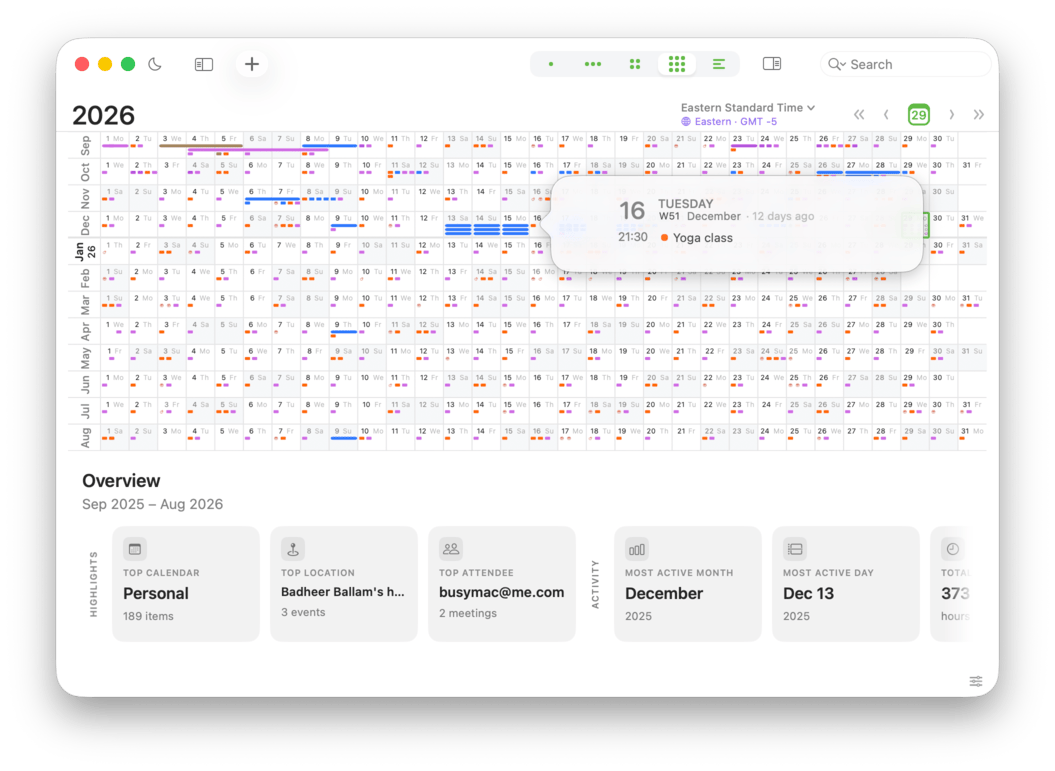
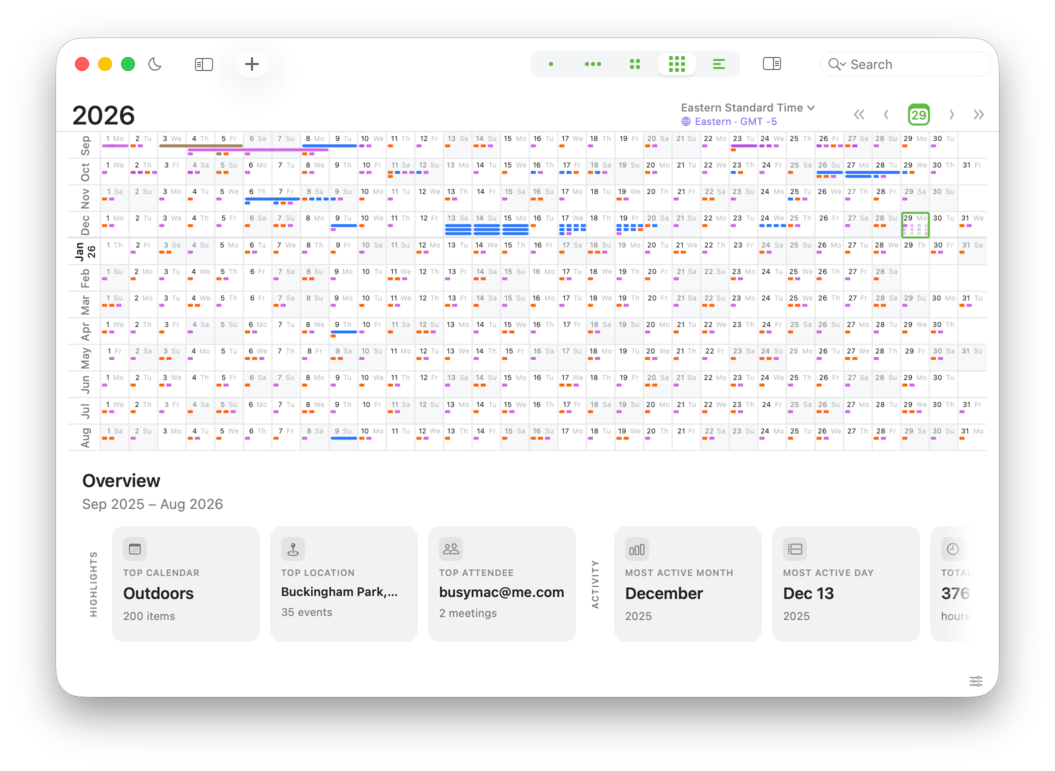
Year view provides a year-at-a-glance overview for planning (or for looking back at the year). It shows your year in a unique format with each month laid out horizontally, and can optionally display top statistics in the Highlights drawer. It can be shown in the classic 12-month layout, or in a continuous Year Planner layout.
View Settings
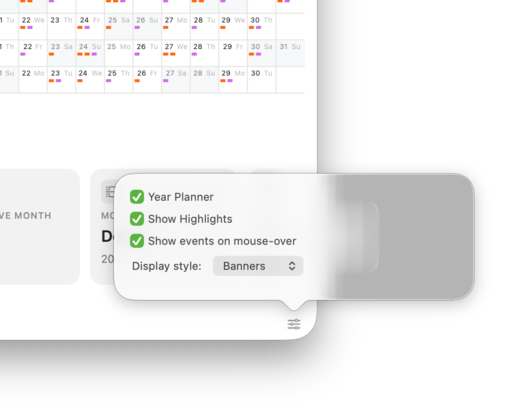
Year View has its own settings popover for quickly switching modes and display options.
- Click the View Settings button in the lower-right corner of the Year View.
- Toggle Year Planner and Show Highlights, and choose a Display style (Banners or Heatmap).
Year Planner
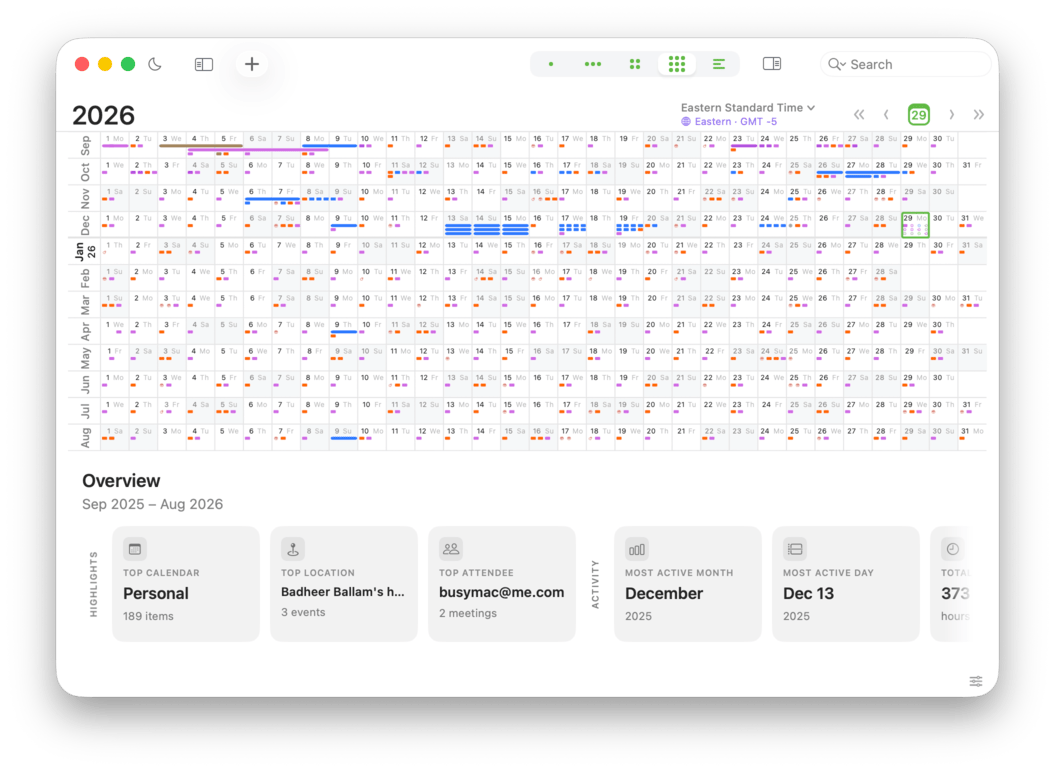
Enable Year Planner to switch to a planner-style layout that’s designed for long-range planning. Months are arranged in rows, making it easy to scan patterns and find open days across the year.
Month by Month
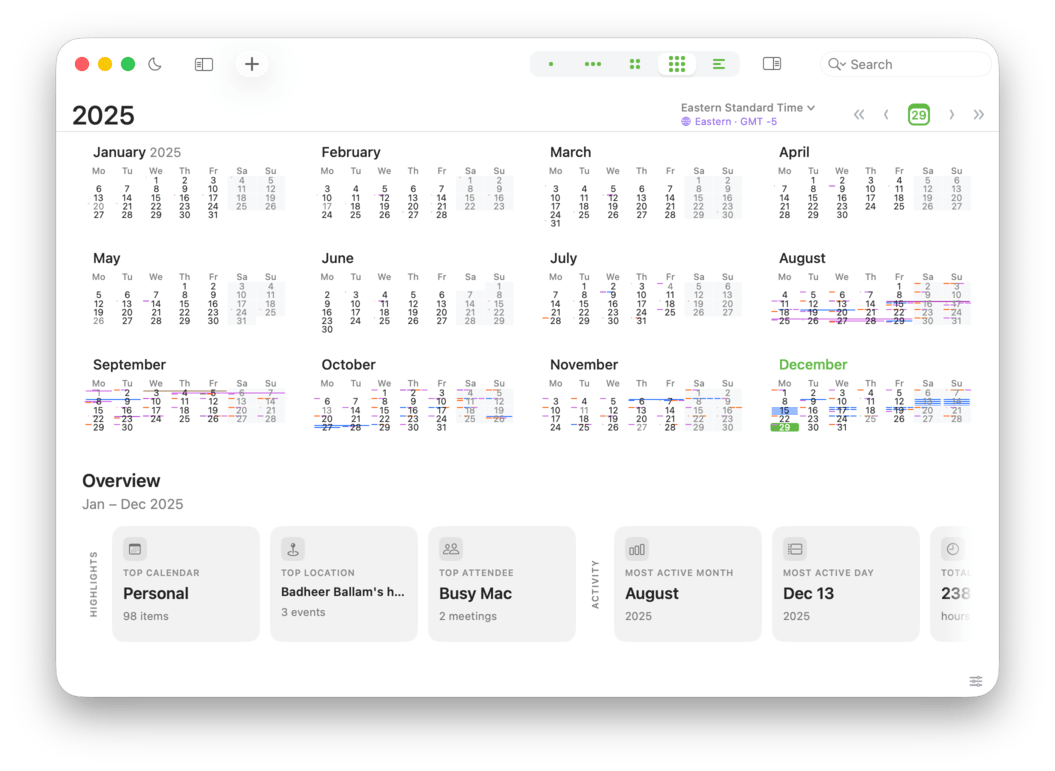
In the classic Month by Month layout, BusyCal shows all 12 months at once, showing you one quarter per row.
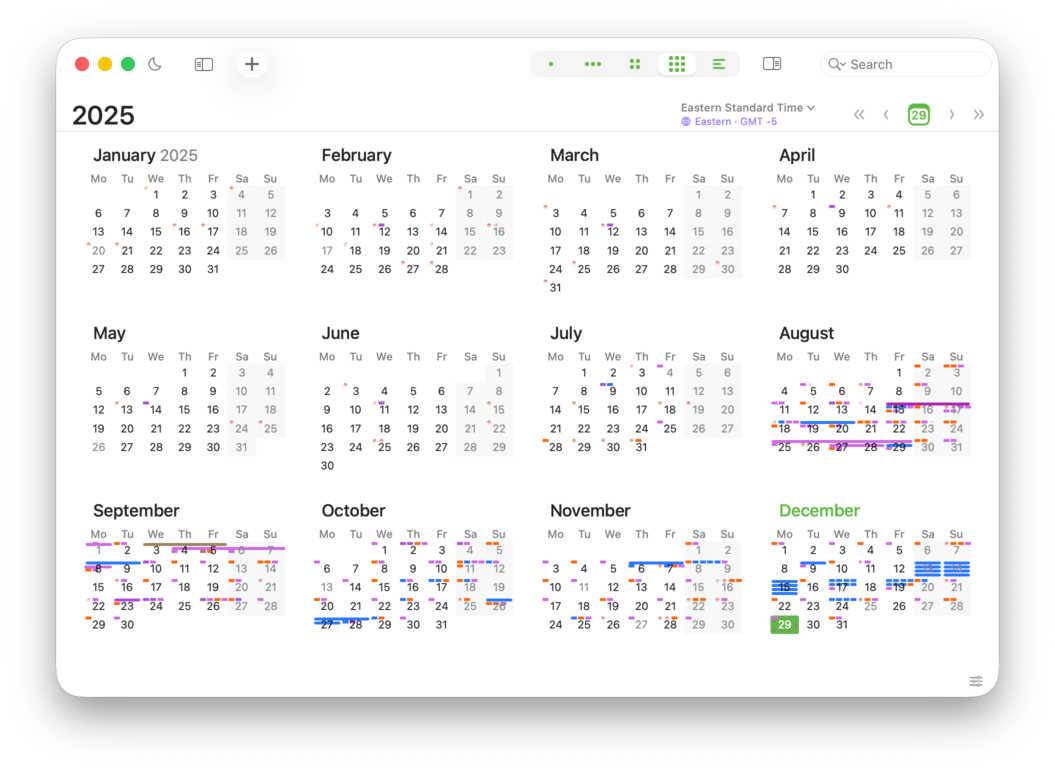
While in Year View, you can scroll forward or backward by one year by clicking the navigation arrows, or by pressing ⌘-Left Arrow or ⌘-Right Arrow.
To scroll forward or backward by four months (one row), press ⌘-Option-Left Arrow or ⌘-Option-Right Arrow. Double-click on a date to switch to month view.
While the Task Panel is open and showing on the right hand side, you can also drag and drop tasks on a date to quickly assign new dates.
Changing Display Style
Year View supports two display styles:
- Banners — Shows events as colored bars across their dates for easy “what’s booked” scanning.
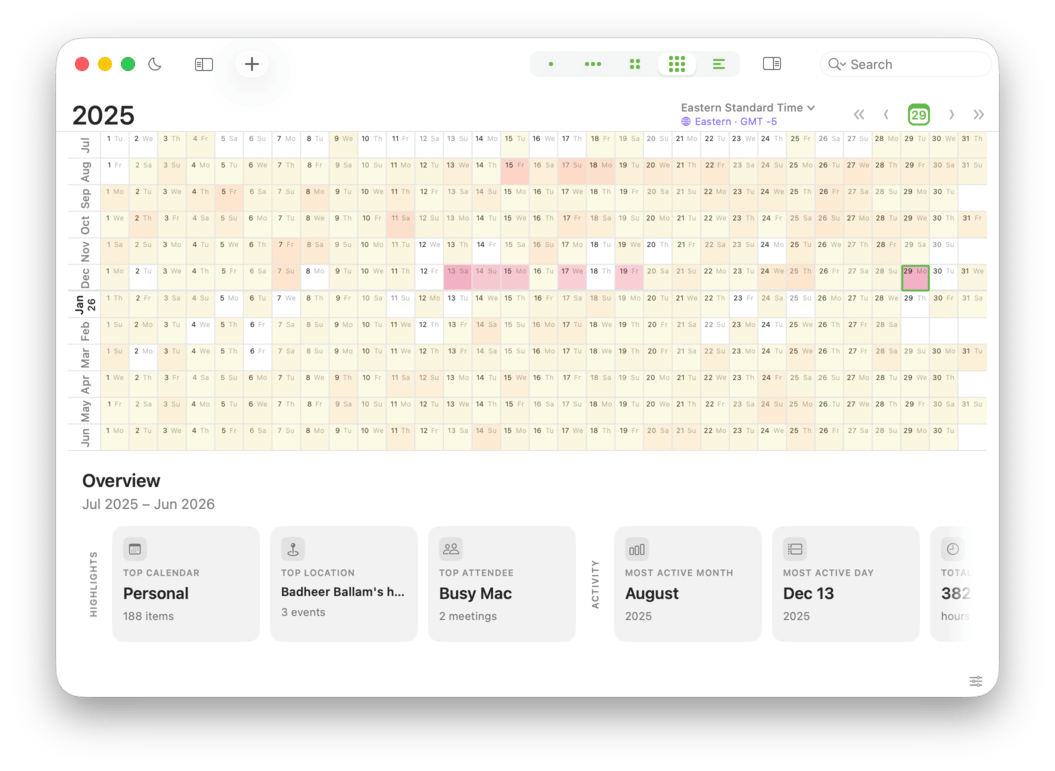
- Heatmap — Shades each day based on overall activity, making busy vs. quiet days stand out at a glance.
Year View also supports special icons for Birthdays, Anniversaries, and Journal entries so these stand out even in compact views and heatmap mode. Make sure those calendars are enabled in the Calendar List to see their icons.
Banners
Heatmap
Show Highlights
Enable Show Highlights to display a Highlights drawer at the bottom of Year View. This section surfaces top statistics for the currently selected calendars, such as:
- Top calendar, location, and attendee
- Most active month and day
- Totals (for example, event count and time)
Events on Mouse-Over
If you enable Show events on mouse-over, you can hover over any day to display a popover with a list of that day’s events.